
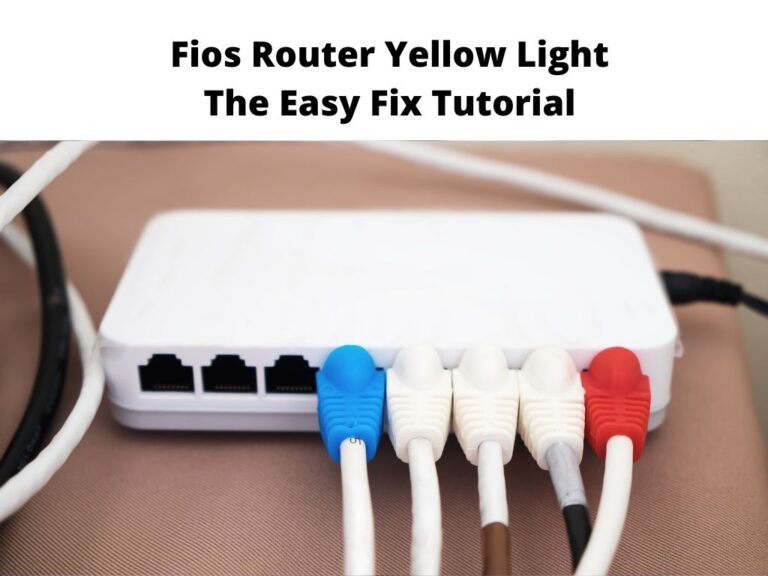
This article will help you understand why you are getting the Verizon router yellow light. If you have experienced this, it is an indication that there is no Internet connection.
Sometimes when this light appears it could be an error with the Verizon extender which means it may need to be re-paired between the router and the extender.
The blinking lights vary depending on the speed and the distance of the extended router.
Table of Contents
Why your Verizon Router Light is Yellow
This is an indication that there is a connection issue:
- When you see a solid yellow light on the router, it means that your router has no Internet connection.
- It can also indicate that there is no signal between your extender and the router.
In a situation where you are pairing an extender to direct your router in order to get reliable Internet coverage, do you know lights will inform you about the strength of the connection?
If the light flashes fast, it means there is a better connection between the extender and the router.
The ideal Color Light of Verizon Router
A blue blinking light means that your router is ready to be paired. When it is solid, it is an indication that the pairing was successful.
Apart from these, any other lights mean that your router has an issue that needs to be resolved and you may need to refer to the Verizon router manual to troubleshoot the issue.
How To Fix The Yellow Light Error on Verizon
Inspect the Ethernet Cable
This is the cable that successfully connects your router to the Internet service of the area. It also broadcast Wi-Fi around your home.
Most times you might not know that the cords have been damaged or loose as a result of wear and tear or interference by Pets at home. You can check the back of the router for the cable to see if nothing is loose or if any cables have frayed over time.
If your cable is old then it’s recommend replacing the old old ethernet cables with a new Ethernet cable.
Reboot your router
If you have confirmed that none of the cables are damaged or loose, then it’s time to reboot your router. To successfully reboot your Verizon router or compatible modem:
- First, you need to switch it off. Some of these routers comprise of a backup battery so ensure it is also disconnected.
- Be patient for about 30 seconds.
- Switch on the router back. Remember to also reconnect the backup battery if there is any, then allow it to boot.
- You will notice a white light which is an indication, but everything is working perfectly.
On some occasions simply rebooting your router solves any problem related to the Internet connection.
Disconnect the Ethernet Cable
This procedure is related to rebooting.
- Disconnect your router and Ethernet cable.
- Reconnect the router and be patient for the green light to appear (The color will be orange).
- Connect your Ethernet back in. Confirm if the issue had been solved.
Router Overheating
Verizon PSP Connection problems can also occur because of overheating. Modern routers have been upgraded to prevent this issue but, in a situation, where you notice that your router constantly feels hot, then you need to turn it off and allow it to cool down.
It is important to disconnect any backup batteries, so it does not keep them ON when you have already shut down. Another thing you can also do is to change the position of your router. Sometimes the location might contribute to the overheating.
Reset Your Router
This procedure will restore the router to its original settings:
- It removes cache data.
- Prevents ongoing malicious attacks or hacking on the hardware.
- The reset buttons can often be seen at the back, press it and allow it for a few seconds to reboot.
Yellow Light Blinking on the Extender
Whenever you notice this it is an indication that they say pairing going on your router and it is not close enough hence requires a stronger signal. When the extender is close enough the light becomes faster.
This is often a straightforward issue to fix, all you need to do is to move your extender closer to the router. Then you will notice that the blinking yellow lights will become solid. At this point, you need to be patient for the pairing to finish, then the lights will change to white which is an indication that there is now a stable connection.
In Conclusion
If you have carefully tried all the suggested solutions above and none was able to rectify this issue, at this point you need to reach out to your service provider. In most cases, it might be that there is maintenance going on which is interfering with all Internet connections.
If this is the case, you just need to be patient because there is nothing you can do about it.
Frequently asked questions
How can the blinking yellow light be fixed on my FIOS router?
This is an indication that the router lacks Internet access. For you to be able to reconnect you have to reboot it by pressing the reset button at the back.
My FIOS extender suddenly appears yellow?
Once the wireless connexion is established, the firmware update will commence. at the completion of this process, the light on the extender will start blinking fast. At this point disconnect and move the extender to a different area to find adequate Wi-Fi coverage.
How can I successfully reset my Verizon Fios Wi-Fi?
First, you have to find the reset button which is often at the back of the router. Use a pointed pin to press and hold the reset button for up to 15 seconds. Allow it to fully reset and power ON.
